You’ve been using Slack every day for years. You type, you send, you scroll. You’ve also spent more time than you’d like hunting for a message from last Tuesday, navigating to a channel with your mouse, and forgetting to follow up on something you promised two hours ago.
Most people use a fraction of what Slack can actually do. These shortcuts won’t require memorizing a hundred commands. Start with two or three, and your daily Slack experience gets noticeably less frustrating.
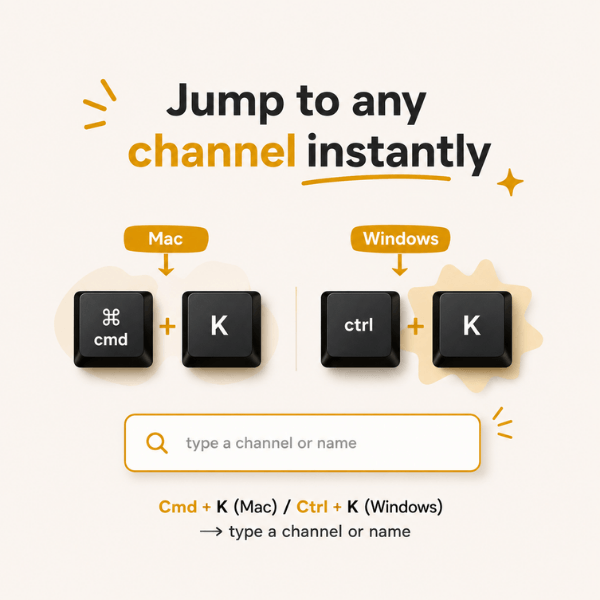
1. Jump to Any Channel Instantly with Cmd + K
Press Cmd + K (Mac) or Ctrl + K (Windows) and type the first few letters of a channel name or person. Slack finds it immediately. Power users barely touch the sidebar; this shortcut alone is worth the two seconds it takes to learn.
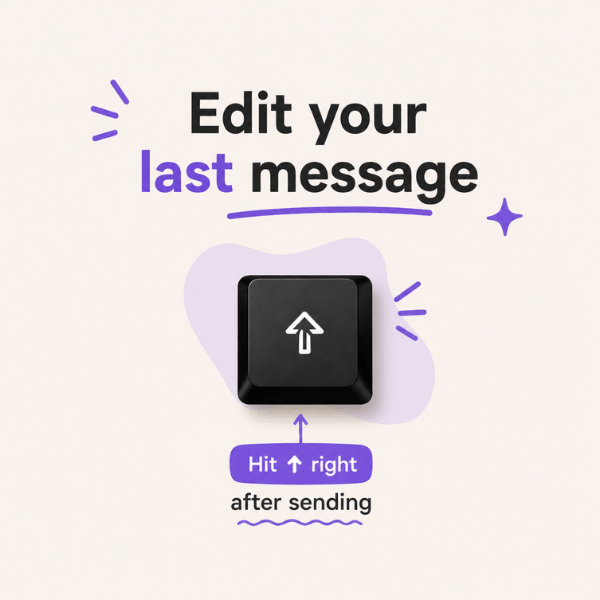
2. Edit Your Last Message Without a Typo Reply
Sent a message and immediately spotted a mistake? Press the Up arrow key right after sending and Slack opens it for editing. No need to send a correction reply that the whole channel sees.
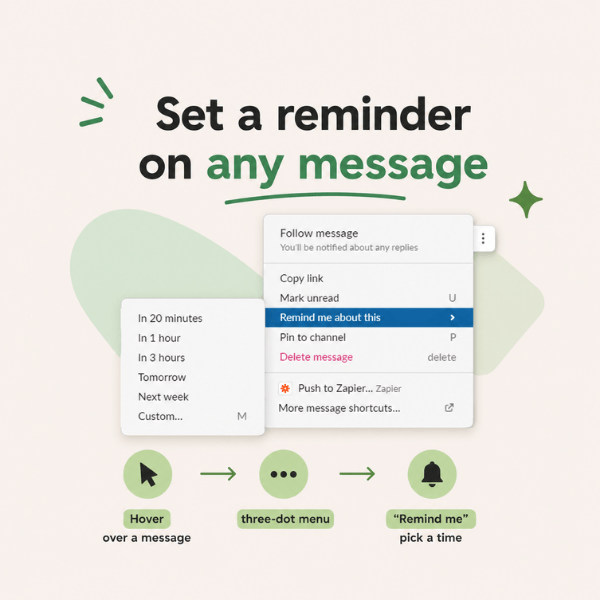
3. Set a Reminder on Any Message
Hover over any message, click the three-dot menu, and select “Remind me about this.” You can choose 20 minutes, one hour, tomorrow morning, or a custom time. It’s the difference between “I’ll follow up on that” and actually following up on that.
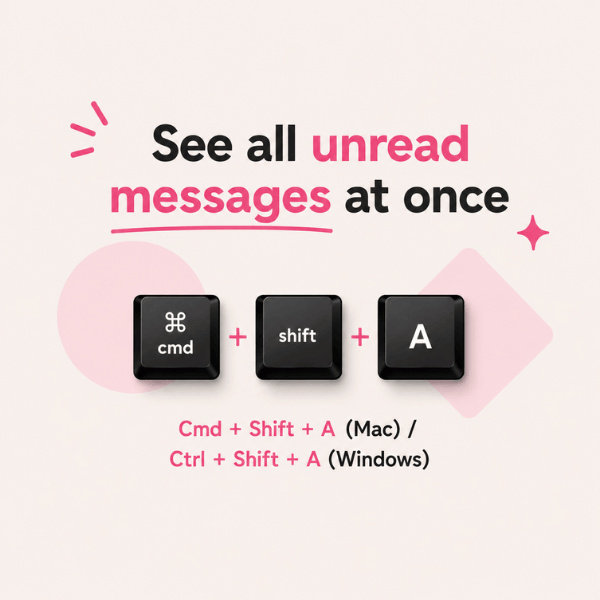
4. See All Your Unread Messages at Once
Press Cmd + Shift + A (Mac) or Ctrl + Shift + A (Windows) to pull up every unread message across every channel in one view. Especially useful first thing in the morning when you’ve been offline since Thursday afternoon.
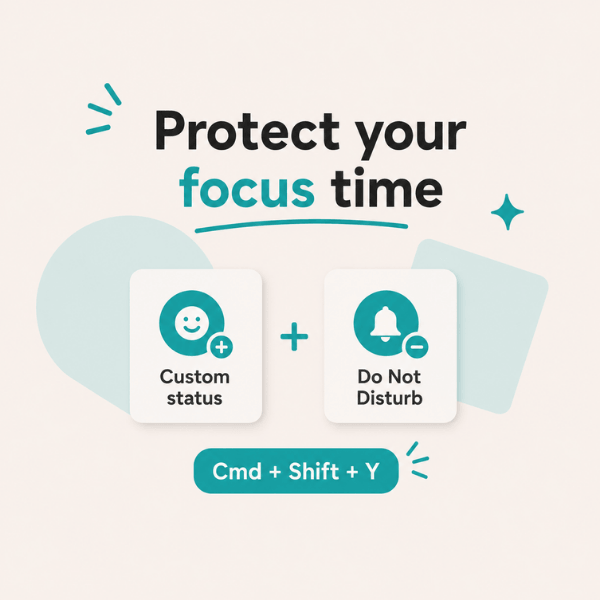
5. Protect Focus Time with Status and Do Not Disturb
Set a custom status like “Heads down until 2pm” so your team knows where you are without you having to announce it in every channel. Pair it with Do Not Disturb (Cmd + Shift + Y) to silence notifications for a set window. Two actions, and your focus time actually holds.
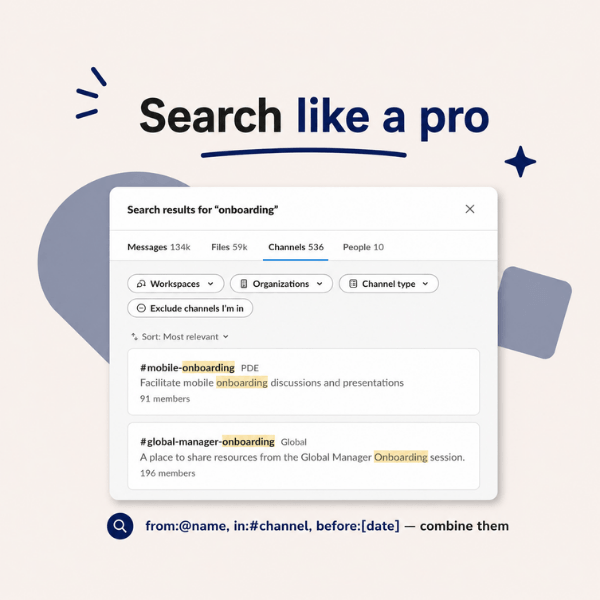
6. Use Search Operators to Find Anything Fast
Slack’s search bar is far more useful than most people realize. Type from:@name to filter by sender, in:#channel to search within one channel, or before: followed by a date to narrow results. Combine them to find almost anything in seconds, without scrolling back through weeks of messages.
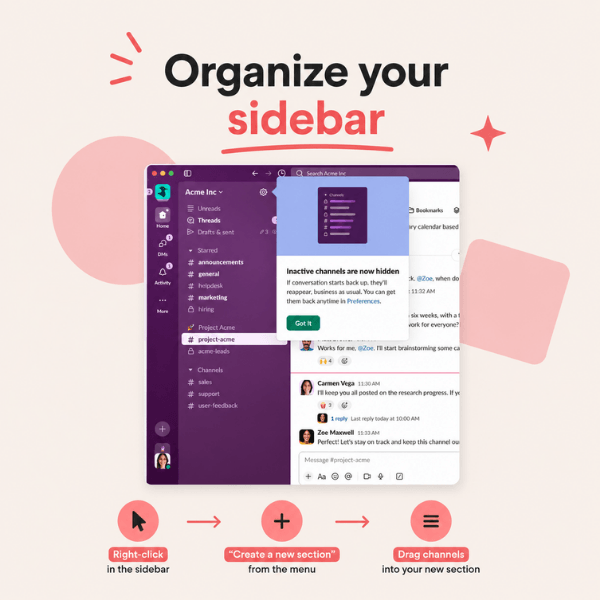
7. Organize Your Sidebar into Custom Sections
Right-click anywhere in your sidebar and select “Create a new section.” Name it whatever makes sense: Clients, Active Projects, Must Watch. Drag channels into it. If your sidebar is currently a scrolling wall of 40 channel names, this one change will make you feel like a different person.
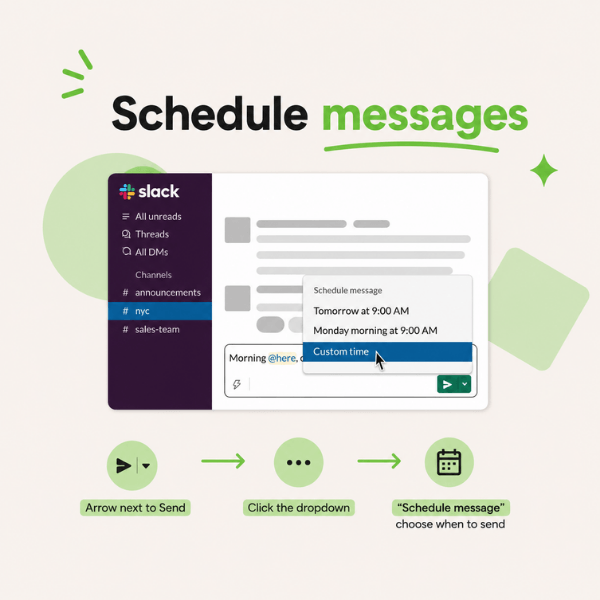
8. Schedule Messages to Send Later
Type your message and instead of hitting send, click the small arrow next to the send button and choose “Schedule message.” Perfect for when you’re working late and don’t want to ping someone outside their hours, or for any cross-time-zone coordination that’s been causing unnecessary 7am notifications.
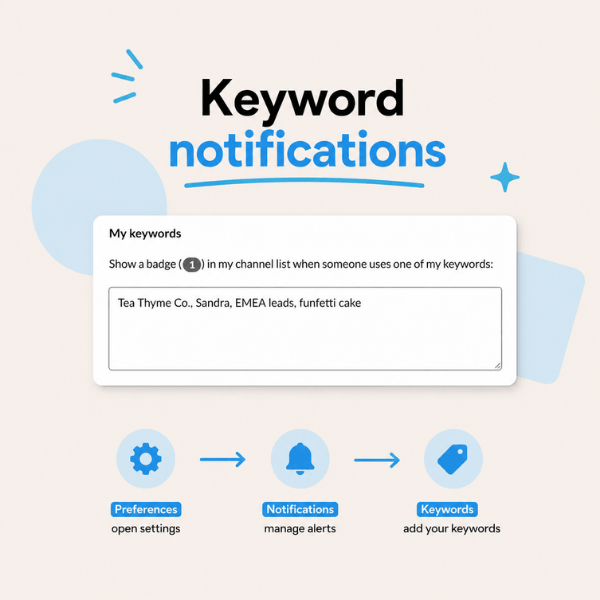
9. Turn on Keyword Notifications
Go to Preferences, then Notifications, then Keywords. Add any word you want to be alerted about: your name, a project name, a client’s name. Slack will notify you anytime that word appears, even in channels you’re not actively watching. You stop missing the things that actually matter to you.
10. Use Emoji Reactions as a Lightweight Approval System
When someone posts a request or drops work for review, have your team react with 👀 to claim it and ✅ when it’s done. No reply thread needed, no status update DMs, no “any update on this?” follow-up. The whole team can see where things stand at a glance.
Start with two of these this week. The navigation shortcuts alone will save you enough time to make the rest worth learning.








 Upcoming Events
 Work Wisdom of the Week: